A virtual private network, or VPN, is an encrypted connection over the Internet from a device (i.e., computer, tablet, phone) to a network (i.e., Arizona State University’s local area network, LAN). It prevents unauthorized people from access or eavesdropping on the traffic and allows the authorized user to conduct work remotely. VPN technology is widely used in university and corporate environments.
Arizona State University (ASU) VPN
ASU uses Cisco AnyConnect SSLVPN (Secure Sockets Layer Virtual Private Network) and the associated client software is a straightforward installation. To install the client, go to https://sslvpn.asu.edu/ and log in with your ASURITE credentials. After you have provided your credentials, the installation will start immediately. On Windows machines, the web installation will first attempt to install the AnyConnect client through ActiveX. If you are using Google Chrome or Mozilla Firefox, this will fail, and prompt you to download the client for your operating system. For some permitted users, specifically faculty or staff members, Cisco AnyConnect can be downloaded through My Apps in My ASU. Click on the My Apps icon on the left-hand side-bar, search in the search bar “Cisco AnyConnect,” select Download App Now and download the installation file respective to your operating system. To see if your operating system is supported, view the Supported Operating Systems list for details. Once you have finished downloading the manual installation, you are now ready to install. After completing the installation, you can now start the Cisco AnyConnect Secure Mobility Client on your device.

You will be prompted for your ASU login credentials:
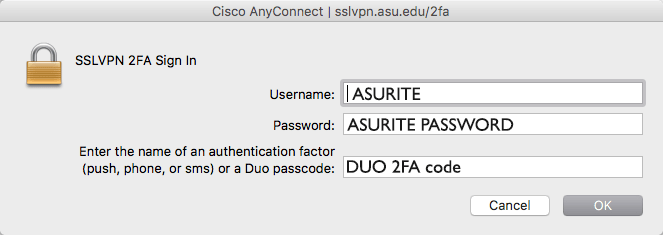
- Username – Enter your ASURITE ID
- Password – Enter your ASURITE PASSWORD
- Enter the name of an Authentication Factor – Enter name of desired (DUO 2FA code) authentication method, see below for details.
Authentication Factor Options:
The third box is used to enter a second authentication factor.
- Type push into the box to receive a Duo push notification from the Duo app on your smartphone, then click “OK”. After you confirm the Duo push notification on your smartphone, you will be logged into the ASU 2FA VPN.
- Type phone into the box to receive a Duo phone call notification, then click “OK”. When you receive the phone call, just follow the automated instructions and you will be logged into the ASU 2FA VPN.
- Type sms into the box to receive a code via text message, then click “OK”. If you enter sms, a code will be sent to you and the Cisco AnyConnect authentication box will appear again. Re-enter your ASURITE ID, password, and in the third box enter the passcode you received from the Duo sms message to log into the ASU 2FA VPN.
- Enter a Duo Passcode. You can obtain a Duo passcode by starting the Duo app on your smartphone, clicking on the “key” button associated with your Arizona State University Duo account and then typing in the displayed code into the authentication factor field. This option does not require a cell or internet connection. The Duo app generates the code when you push the “key” button in the Duo app (red box in the image below). The second image below shows where you type this Duo passcode into the authentication factor dialog box.
Note that for security reasons, you will see dots when typing in both your ASURITE Password and authentication factor selection (push, phone, sms or Duo passcode) and the actual push, phone, sms or Duo passcode you use to authenticate with.
Command Line Interface (CLI)
Alternatively, Cisco AnyConnect has a command-line interface (CLI) which can be useful for scripting automatic VPN connections. After AnyConnect is installed, the method to access the CLI is by launching the file vpncli.exe located in C:\Program Files\Cisco\Cisco AnyConnect VPN Client .
The syntax for connecting is the following:
vpncli.exe connect sslvpn.asu.edu
To disconnect AnyConnect, use the following command:
vpncli.exe disconnect
The username will default to the currently logged on user. However the user must enter their password as it is never stored in the client’s machine. This method of connecting can be used in a startup script for users who prefer to have uninterrupted access to resources required by the VPN.
Afterwards, go to https://sslvpn.asu.edu/ and log in. Once you are automatically connected, the ASUProfile.xml file will be recreated with the correct settings.
For any additional questions, visit our Knowledge Article or call the ASU Help Center at 1-855-278-5080.
 BioPchem